Office night cleaning
Plan a night shift for a three-storey office and see what robot vacuums change in finish time and staff hours.
No sign-in needed: open it in Studio, inspect the saved results and edit in 2D and 3D. Sign in to connect your own AI; project files remain free. Check Account for execution access. Opening asks before replacing your current space.
With robot vacuums on the night shift, how many cleaners does this building need, and when is it done?
- Who uses it
- Building-maintenance companies preparing a tender or renewal, and office facility managers
- How it can create value
- Show the owner the same work list done three ways: today's crew, the crew with robots, and fewer cleaners with robots, each with its finish time and staff hours, before buying robots or changing the contract. Fewer staff hours lower cost only if paid hours actually fall.
- Bring your site data
- The floor plan, the specification (what is cleaned how often), measured minutes per task, the vacuum rates of the people and of the robot model on this floor, lift access at night and the shift window.
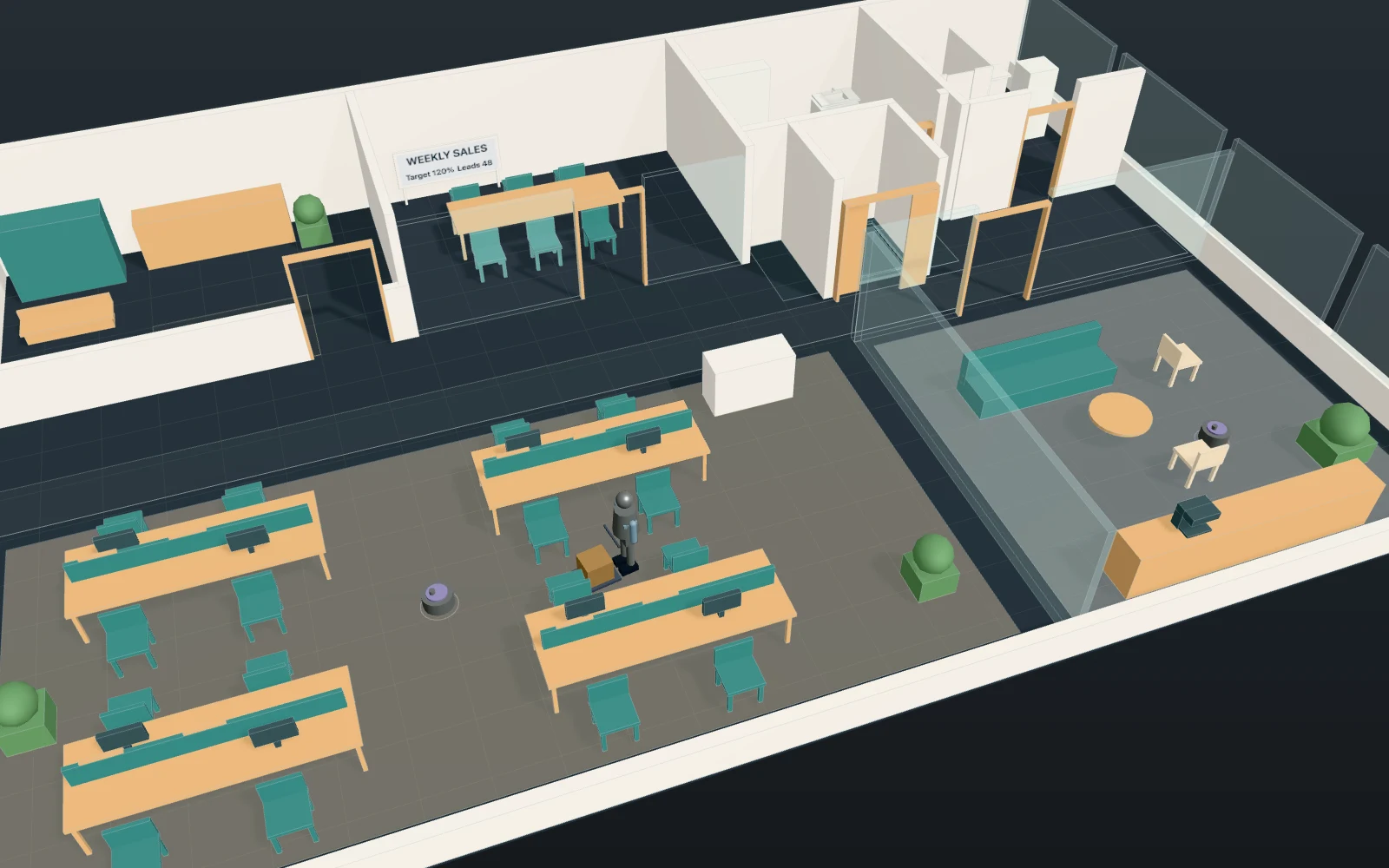
A model you can inspect.
A building-maintenance crew cleans a three-storey office from 22:00 (time 0); it opens at 07:00. All jobs are listed at 22:00, top floor first: bins and desks, washrooms, meeting rooms, coffee points, parcel rooms, bin bags down to the waste cage, and 548 m² of vacuuming. The nearest free cleaner takes the next job with a cart; robots, if any, take the vacuuming (robots 0: the cleaners vacuum). A pass is drawn as lanes and takes about area ÷ rate (longer round furniture); other jobs take fixed minutes. All ride the one-car lift one at a time. Staff hours: cleaners × the time the last is back in the store. Not computed: coverage per m², moved chairs, robot charging, battery ageing, spills, people in the building.
Change one thing
Set robots from 0 to 2 with the same two cleaners, then cut to one cleaner. Try another washroom time or the robot rate from a data sheet.
Read the consequence
When the last job is done, the cleaners' busy hours, who waits for the lift, and how long the robots run after the crew. Coverage, moved chairs, charging and spills are not modelled.
View the starting inputs
- Cleaners on the night shift
- 2
- Robot vacuums (0: none)
- 0
- Cleaner vacuuming rate (m² per hour)
- 400
- Robot vacuuming rate (m² per hour)
- 250
- Minutes per washroom
- 15
Agent counts, routes and resource definitions are also saved in the project JSON.
The same demand. A different capacity.
One run, seed 1. Observation window 480 minutes. Arrivals, geometry and the seed set stay the same in every option.
| Scenario | Completed | Mean wait | Mean cycle | Blocked |
|---|---|---|---|---|
| 2 cleaners, no robots | 31 | 77m 54s | 87m 31s | 0 |
| 2 cleaners + 2 robots | 31 | 44m 34s | 55m 43s | 0 |
| 1 cleaner + 2 robots | 31 | 76m 34s | 87m 44s | 0 |
Waiting averages cover arrived jobs, including unfinished waits; cycle averages cover completed jobs only. These are synthetic calculations, not measured site performance, revenue or a safety assessment.
Engine, status and output notes
process-des-2.7.0. Status: 2 cleaners, no robots: completed; 2 cleaners + 2 robots: completed; 1 cleaner + 2 robots: completed. “Completed” is the engine run status, not success for every job. Check blocked jobs and warnings.
- No engine warnings.
Engine inputs and saved comparisons stay with the saved project. Any limited trace affects playback details, not aggregate metrics.
Plan in 2D. Inspect in 3D. Keep the whole project.
- Open and adjust. Switch between 2D and 3D; edit a part, a floor or an input. Both views describe the same model.
- Connect your agent for free. Sign in, choose Connect AI and connect ChatGPT, Claude, Codex or Claude Code. Ask it to inspect the example, edit the layout and check a route.
- Save a checkpoint. Project → Project file, or ask the agent to export the complete project. Import it later to restore floors, scenarios, saved comparisons and the selected view.
- Compare options. Run new operational comparisons under the same demand. Check Account for execution access, built-in AI and manual cloud-saving limits.