Convenience store cameras and shelf gaze
Explore six security cameras and the shelves in visitors’ assumed view, using a saved lunch-hour simulation in an editable convenience store.
The lunch hour’s run is saved with the model, so it plays without a paid plan. Running it again with other settings needs Pro.
What do the cameras cover, and which shelves enter visitors’ view?
- Who uses it
- Store planners and operators
- How it can create value
- Inspect camera blind spots and shelf visibility on the same store model.
- Bring your site data
- Your floor plan, shelf heights, camera lenses and assumed shopper routes.
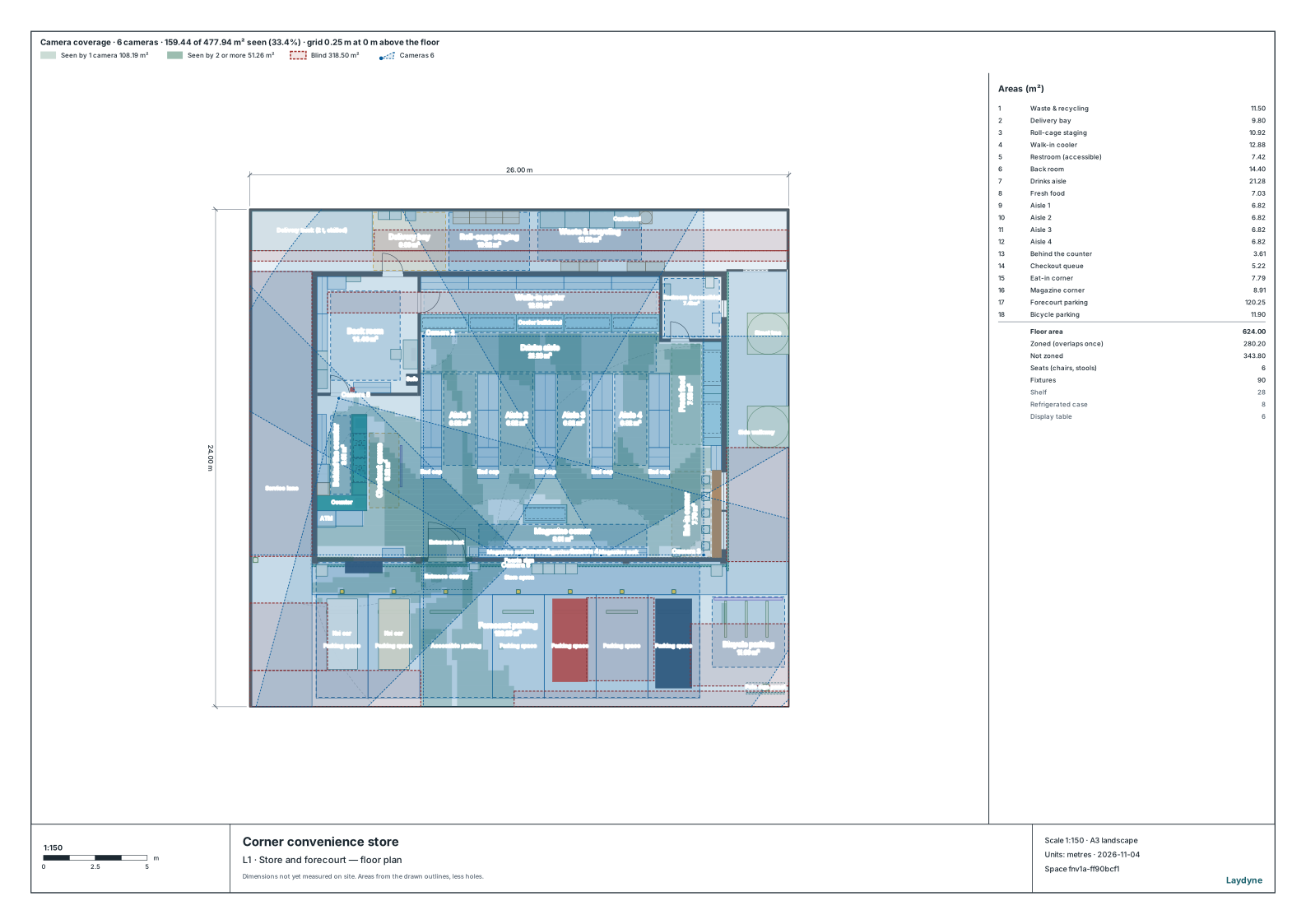
Cameras. Inspect the six cameras’ coverage and blind spots, and the people on camera during the saved lunch hour.
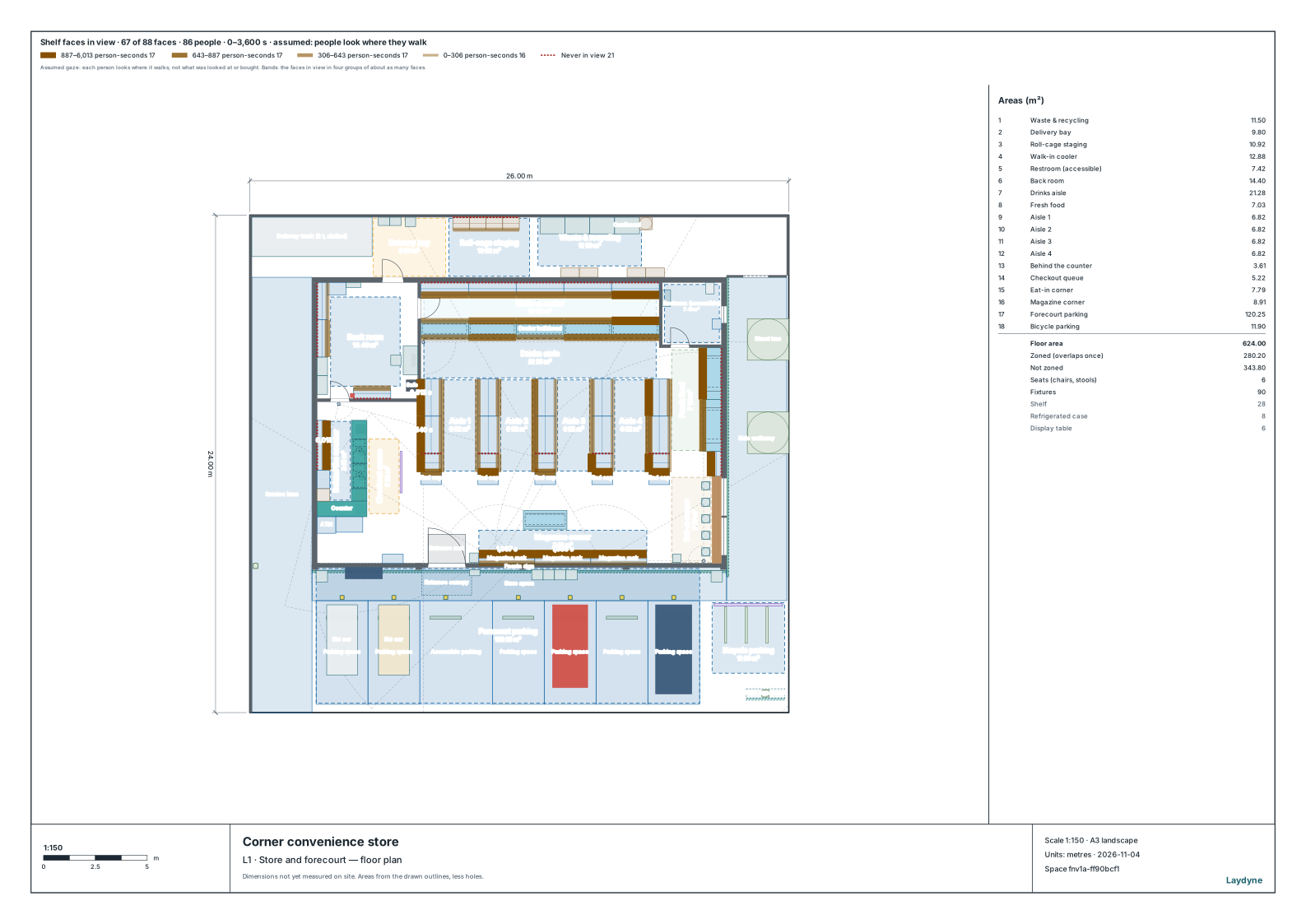
Gaze heatmap. See which shelf faces came into visitors’ assumed view during the saved lunch hour, from their recorded movement.
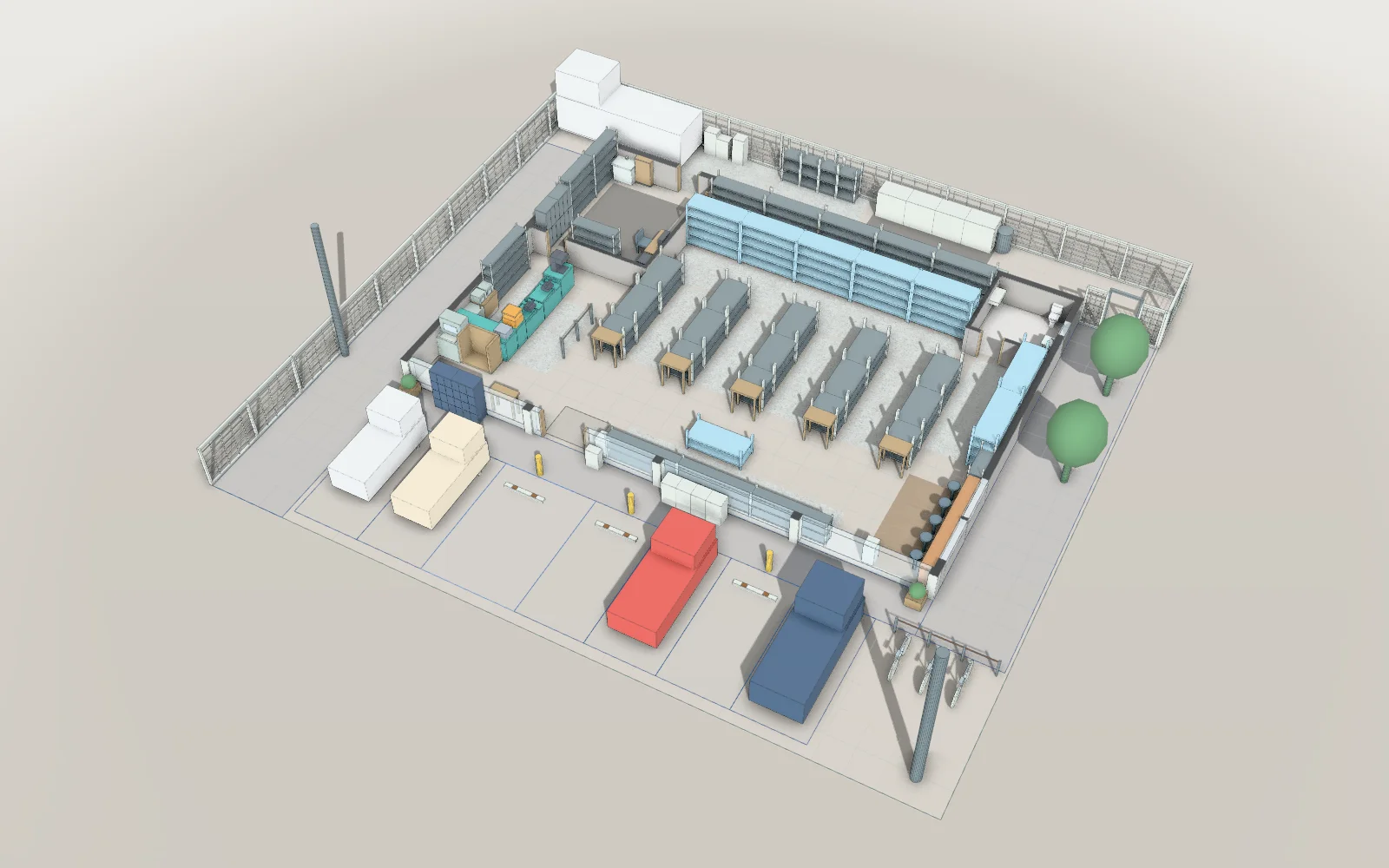
A model you can inspect.
The published convenience store lunch rush with six dome cameras from the camera placement article. The saved scenario assumes 150 shoppers per hour arriving for 35 minutes, two cashiers and a 60-minute observation window. Gaze counts shoppers and the delivery driver by default, excluding the store clerk. It follows the direction of movement: 120° field of view, 6 m range and shelf faces at 1.2 m. Visibility is geometric; it does not measure actual attention, identification or purchases.
Change one thing
Change a camera’s position or lens, then inspect its coverage and blind spots.
Read the consequence
Play the saved lunch hour to inspect people on camera and compare shelf faces in visitors’ assumed view.
View the starting inputs
- Site width (m)
- 26
- Site depth (m)
- 24
- Shoppers per hour
- 150
- Cashiers
- 2
These dimensions are assumptions for the example.
Dimensions and quantities
- Security cameras
- 6
- Saved simulation (minutes)
- 60
- Camera lens (horizontal × vertical)
- 90° × 60°
- Camera range (m)
- 25
Inside the building, cameras cover 67.7% of the 192.56 m² sampled floor; blind spots total 62.25 m². The camera picture shows the whole site, including the car park: 33.4% of 477.94 m². Shelf gaze defaults to shoppers and the delivery driver, and keeps their last movement direction when stopped. People can hide each other from cameras; this shelf view does not include people hiding shelves.
Plan in 2D. Inspect in 3D. Keep the whole project.
- Open and adjust. Switch between 2D and 3D; edit a part, a floor or an input. Both views describe the same model.
- Connect your agent for free. Sign in, choose Connect AI and connect ChatGPT, Claude, Codex or Claude Code. Ask it to inspect the example, edit the layout and check a route.
- Save a checkpoint. Project → Project file, or ask the agent to export the complete project. Import it later to restore floors, scenarios, saved comparisons and the selected view.